Azure DevOps
Getting Started
You will need to be invited to the Critical Technologies Azure DevOps (ADO) team. You can email the site admin or request access from your team lead.
Once logged in, you'll be brought to your main page. On the left side of the page is a list of all the organizations you are a member of. The Critical Technologies team only utilizes one organization. If you are not a part of any other organizations, CriticalTechnologies will be selected by default and you'll be able to see the projects you are associated with.
You may not have been added as a member if you do not see the project you're looking for. Email the site admin or contact your team lead to be added to that project.
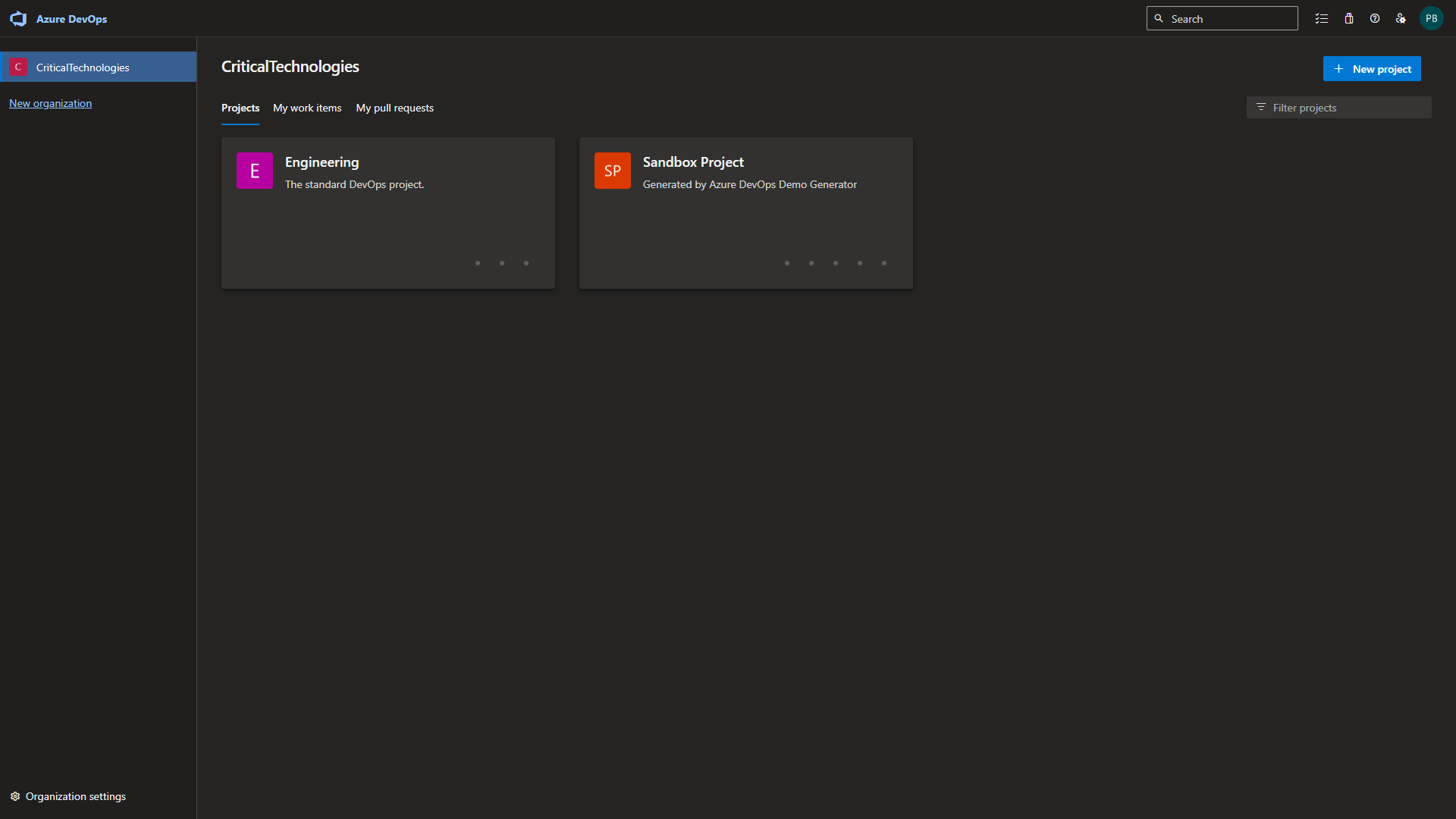
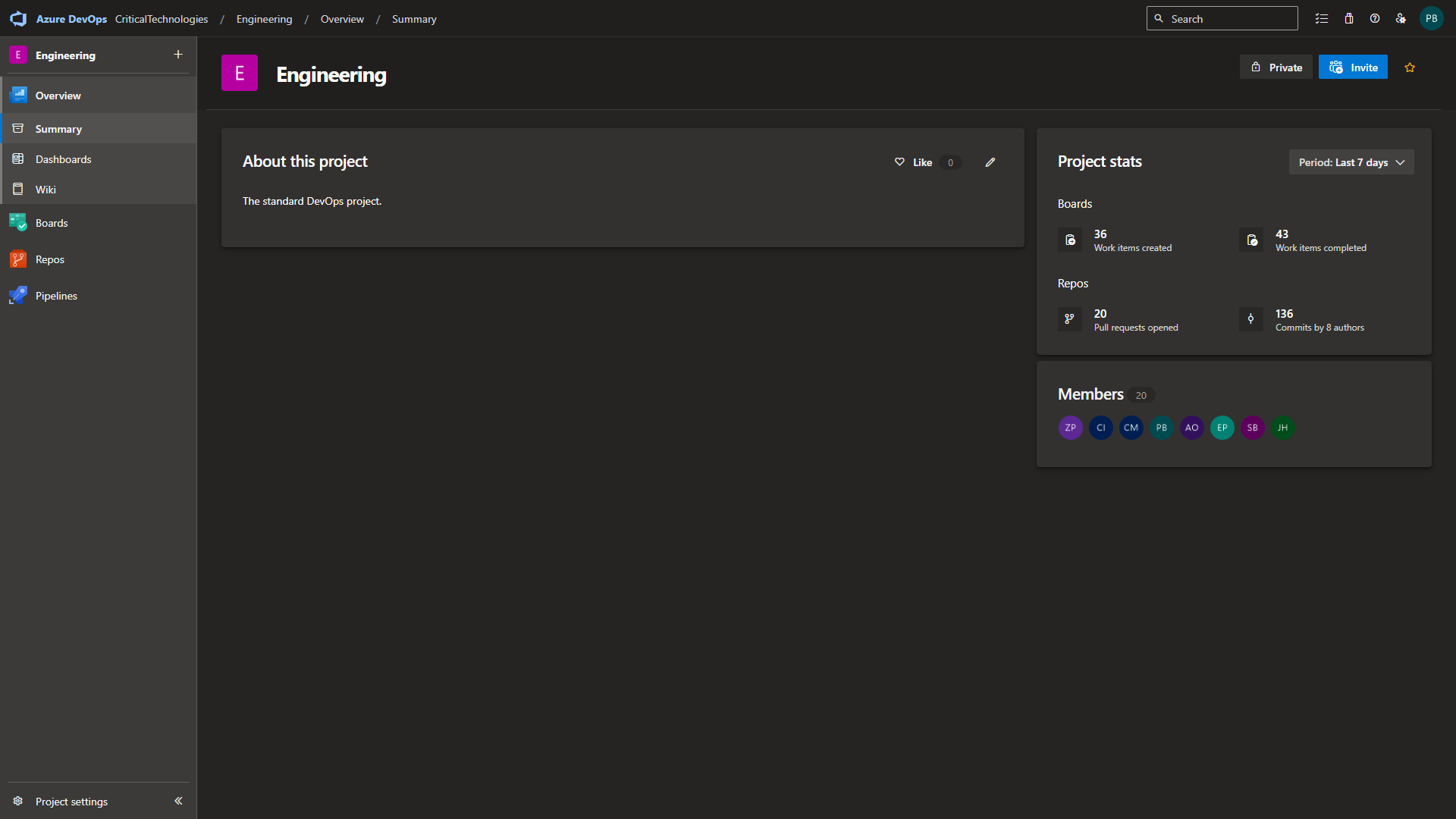
All project work is tracked in the Engineer project. The Sandbox Project is reserved for ADO development. Select the Engineering project. You'll be directed to the summary page for the Engineering project. You are now in the Engineering project and the navigation on the lefthand side will take you to the appropriate sections in the project.
Project Wiki
Under the Overview section, select Wiki to go to the project Wiki list. Select the correct project to see the associated project information.
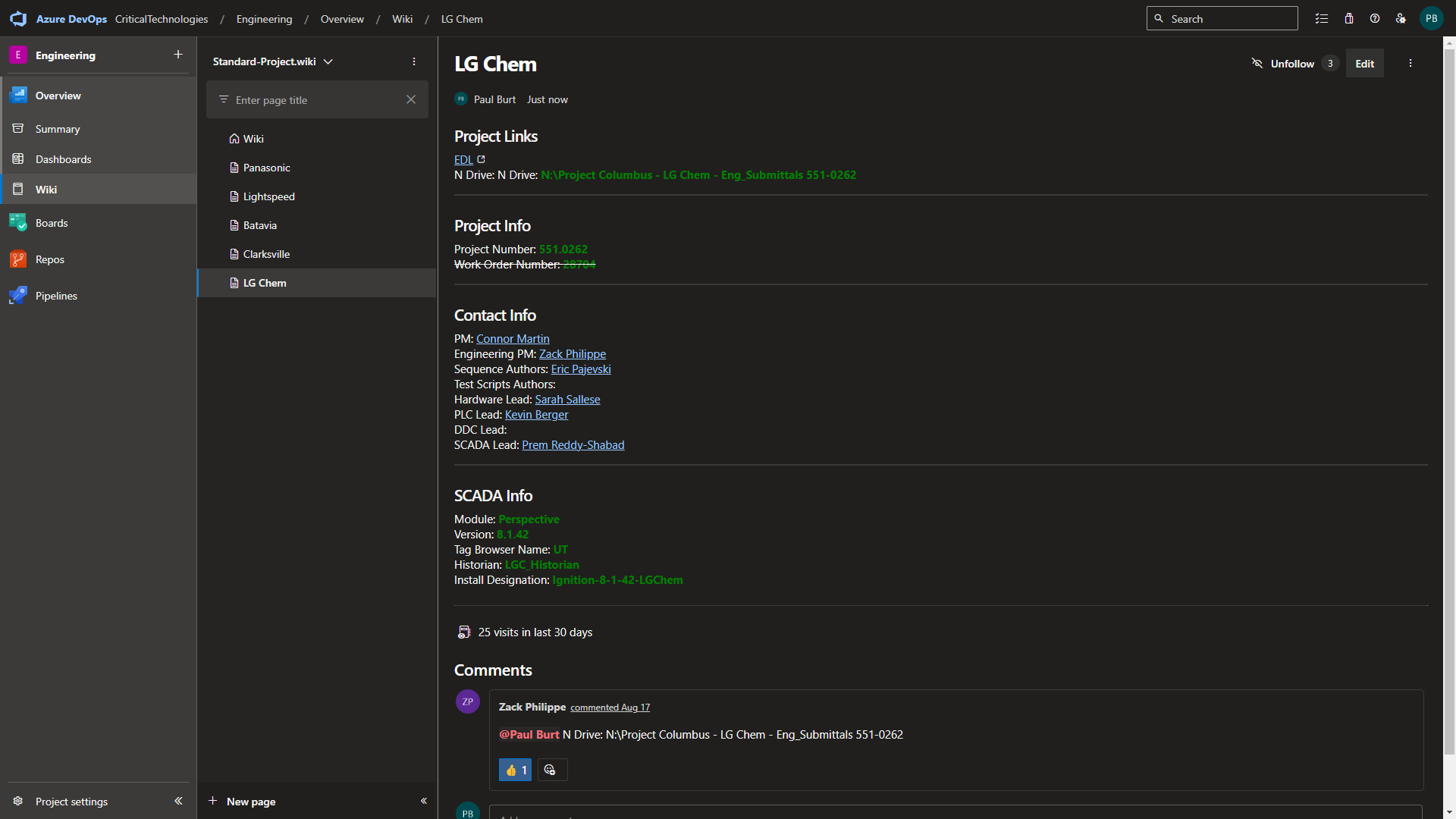
The Wiki is a more development-specific summary. The Wiki should include useful links to pages like the EDL, the Front End, and non-traditional data storage.
It will include contact information for all Critical Technologies points of contact for the project.
It will have project information specific to the SCADA, PLC, Hardware, and Programming teams.
Navigating a Project
Dashboards
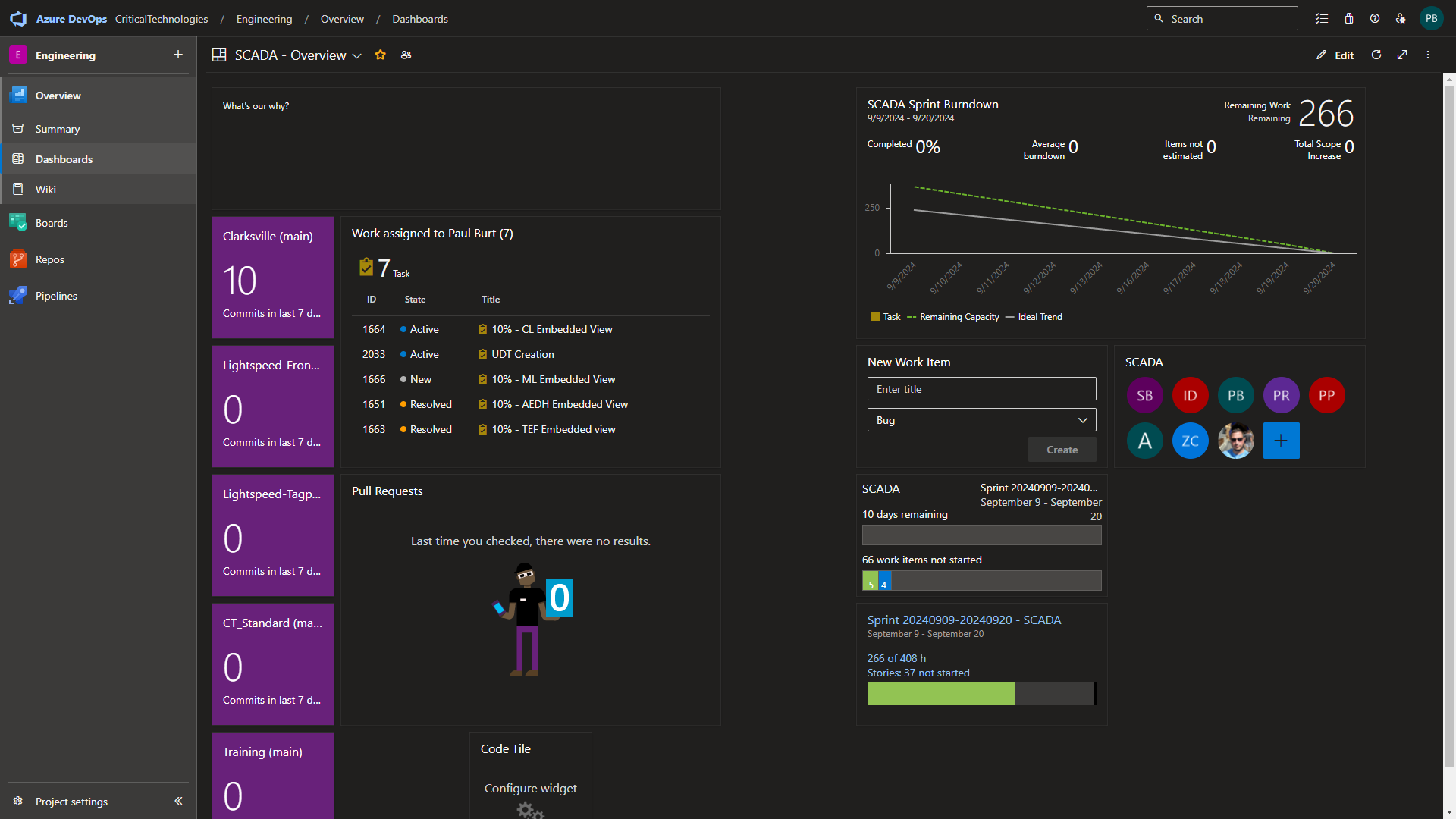
Dashboards are a widget based screen that allows for custom views of project data. Each team, by default has an associated dashboard that can be customized to suit that teams needs. There is no standard structure and content decisions are the choice of the associated team. If you feel the need for a dashboard outside the scope of your team dashboard, please email the site admin or contact your team lead.
Boards
The boards section is where all work tracking takes place. There are several views based on the scope of the project your trying to view. Below are the pages used by Critical Technologies.
Work Items
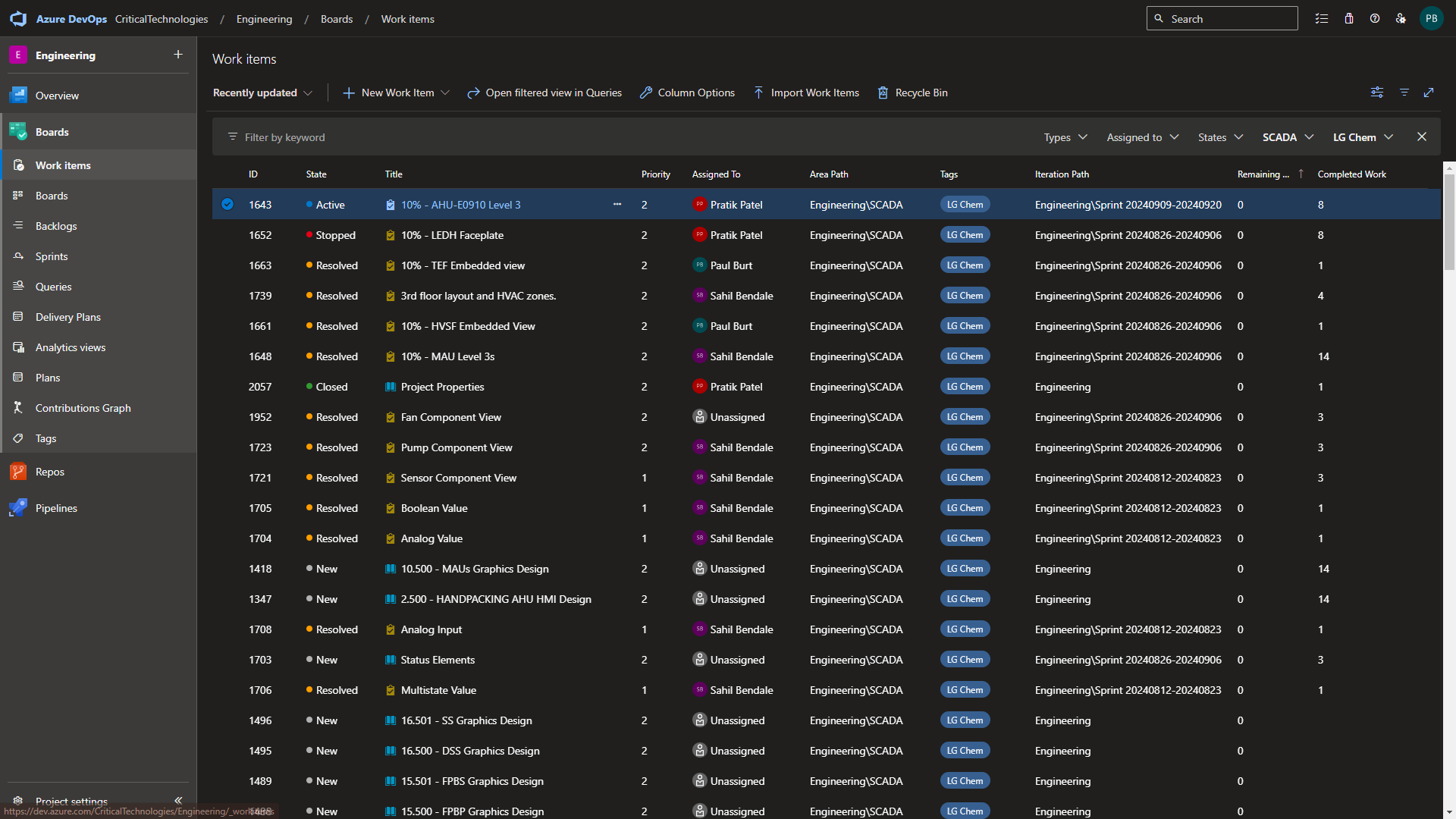
The Work Items view is the default view and is an all encompassing list of all Epics, User Stories, Features, Tasks, and Bugs for all projects. The view is filterable and customizable. It is typically used by project managers and team leads.
Backlogs
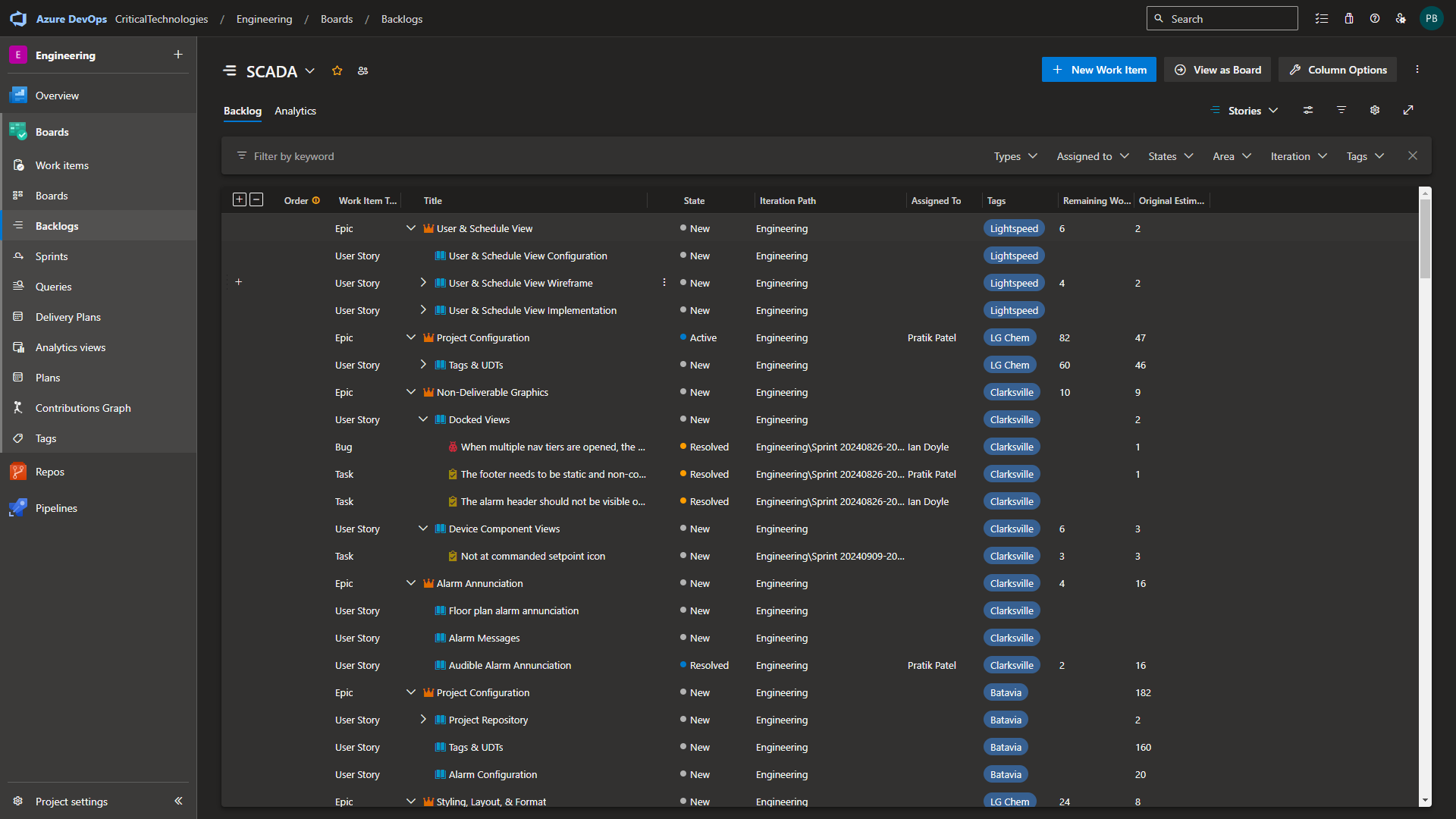
The Backlogs view is similar to the Work Items view, but is in a hierarchical structure. This page is more frequently used than the Work Items page as it presents a more logical view of tasks and their associated parents, children, and other dependencies. It is typically used by project managers, team leads, and project leads.
Sprints
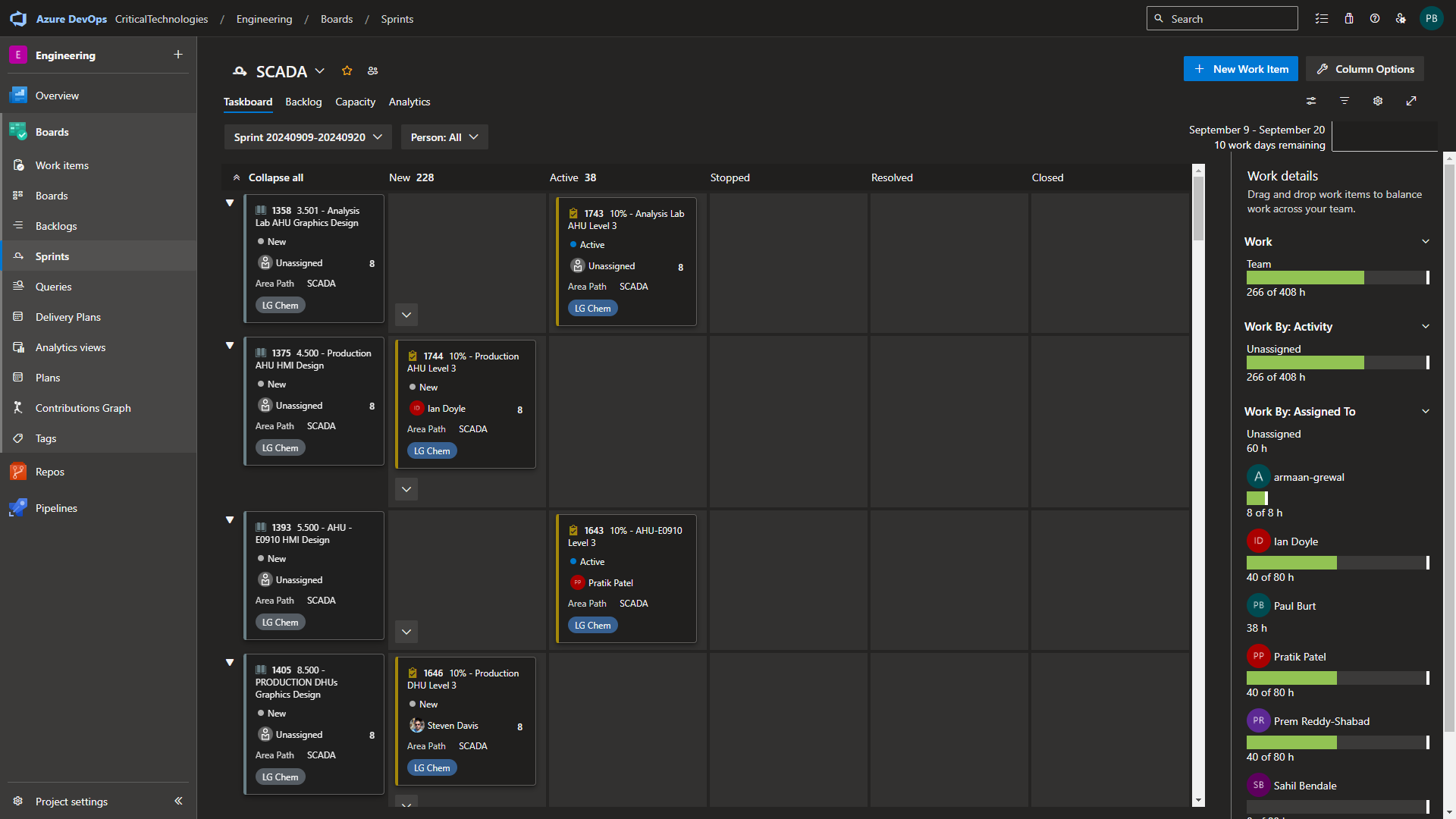
The Sprint view is where a majority of your ADO time will be spent. From the Sprints page, we can see assigned tasks, their states, capacity for the sprint, and task associations. When interacting with tasks (adjusting hours, putting active, adding comments) it is easiest to accomplish from this page.
Repos
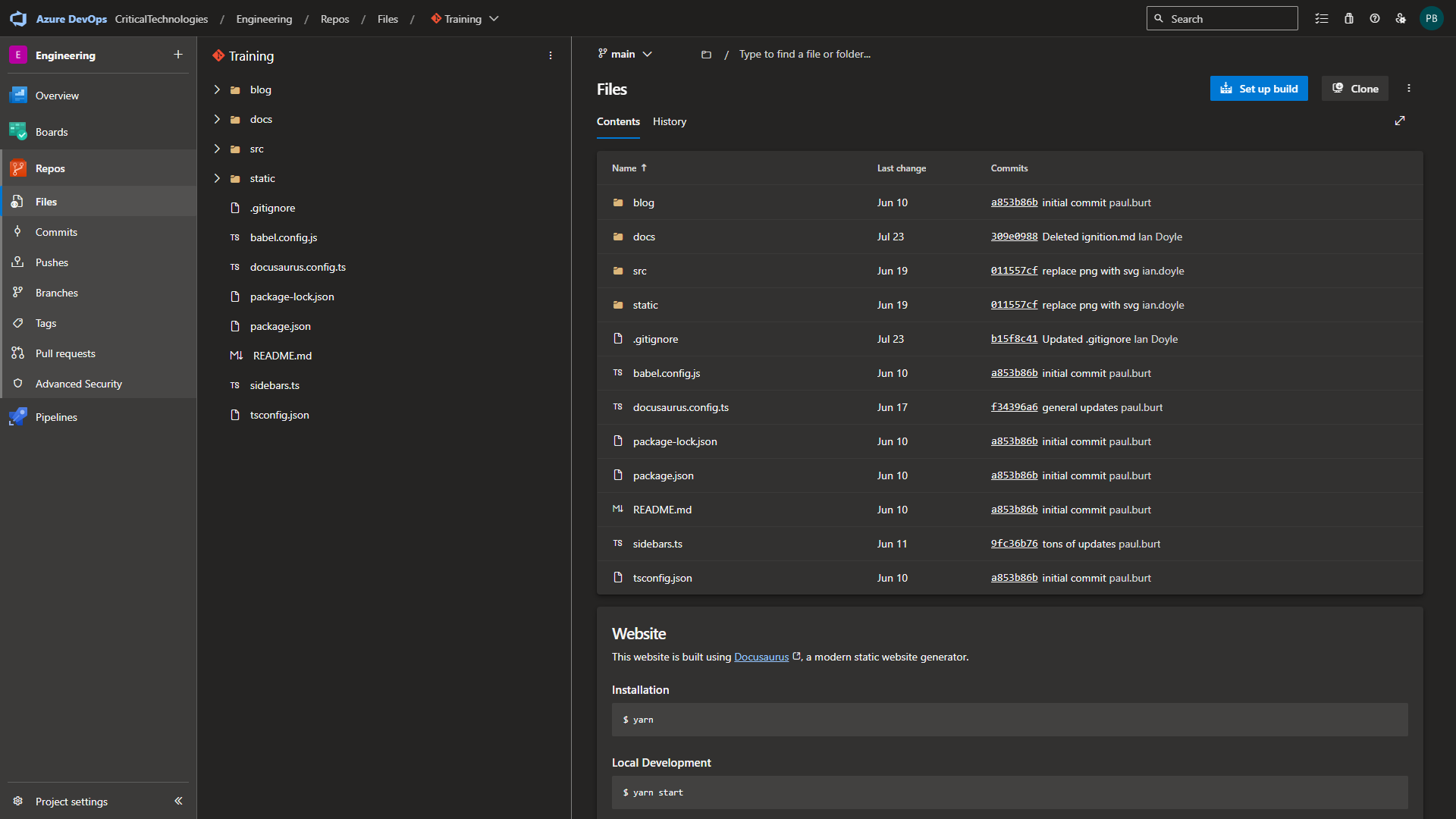
All Critical Technologies repositories are managed with ADO. From the Repos page, you can access all repositories that you have permissions to access.
Navigating a Repository
Repository Files
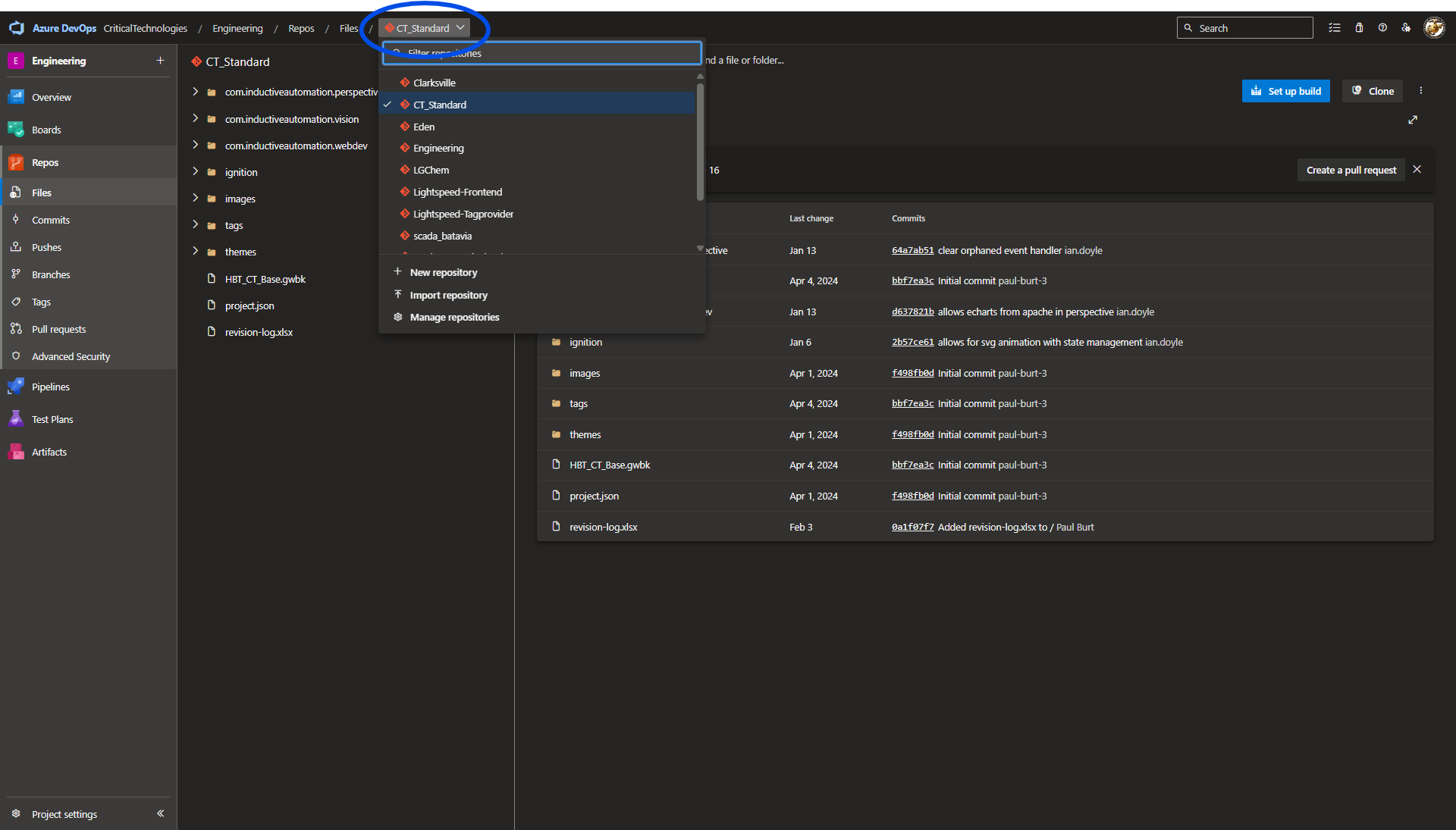
When you navigate to the Repos page, you'll land on the files page for the last repository you viewed or the first repository in the list.
To change the displayed repository, select the repository dropdown. A list of all current repositories will be displayed. You can change the viewed repository on every repo page.
This is also where you'll create new repositories and manage existing repositories.
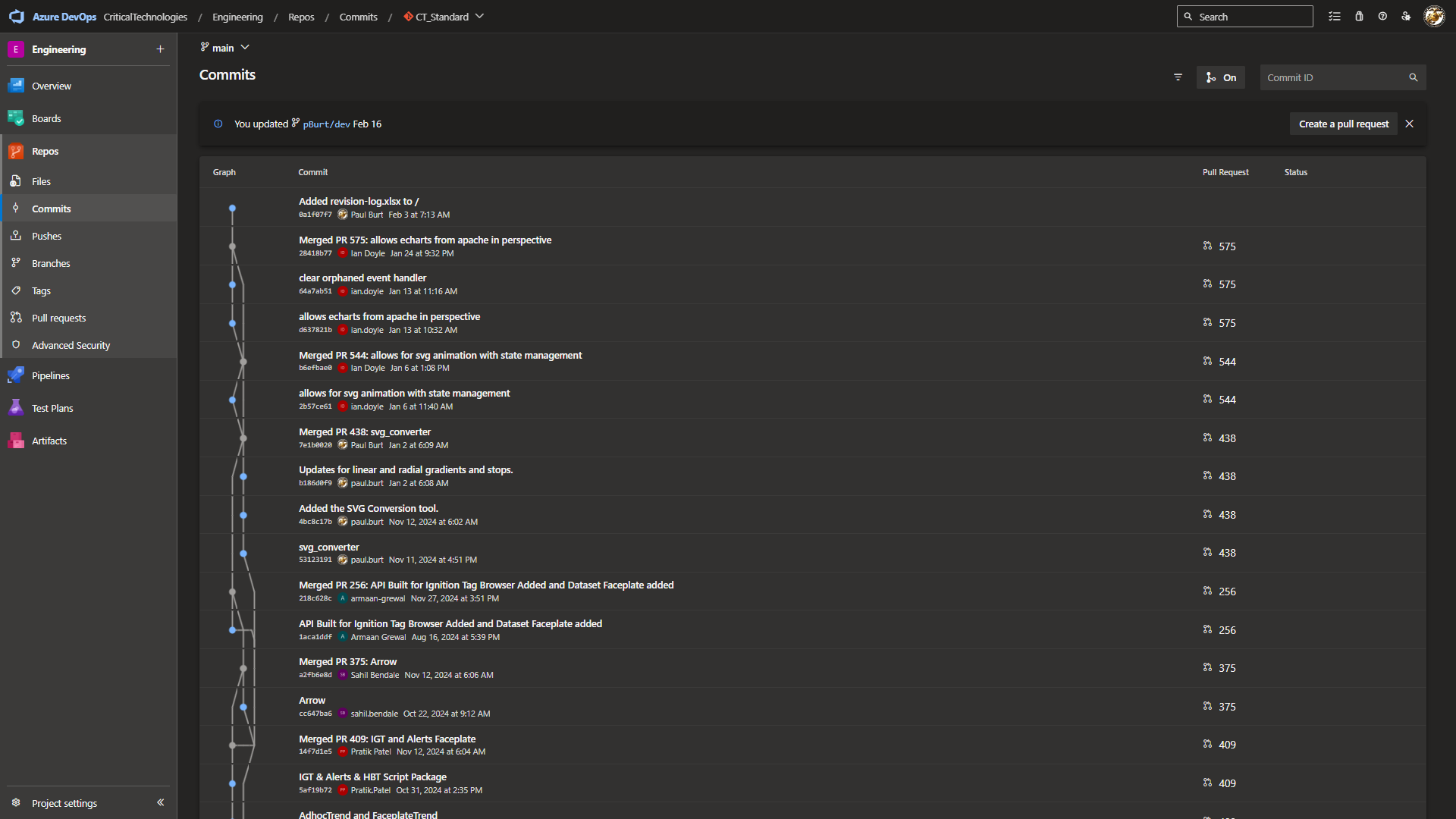
Commits
The Commits page shows a Git graph of all commits in relation to the selected branch.
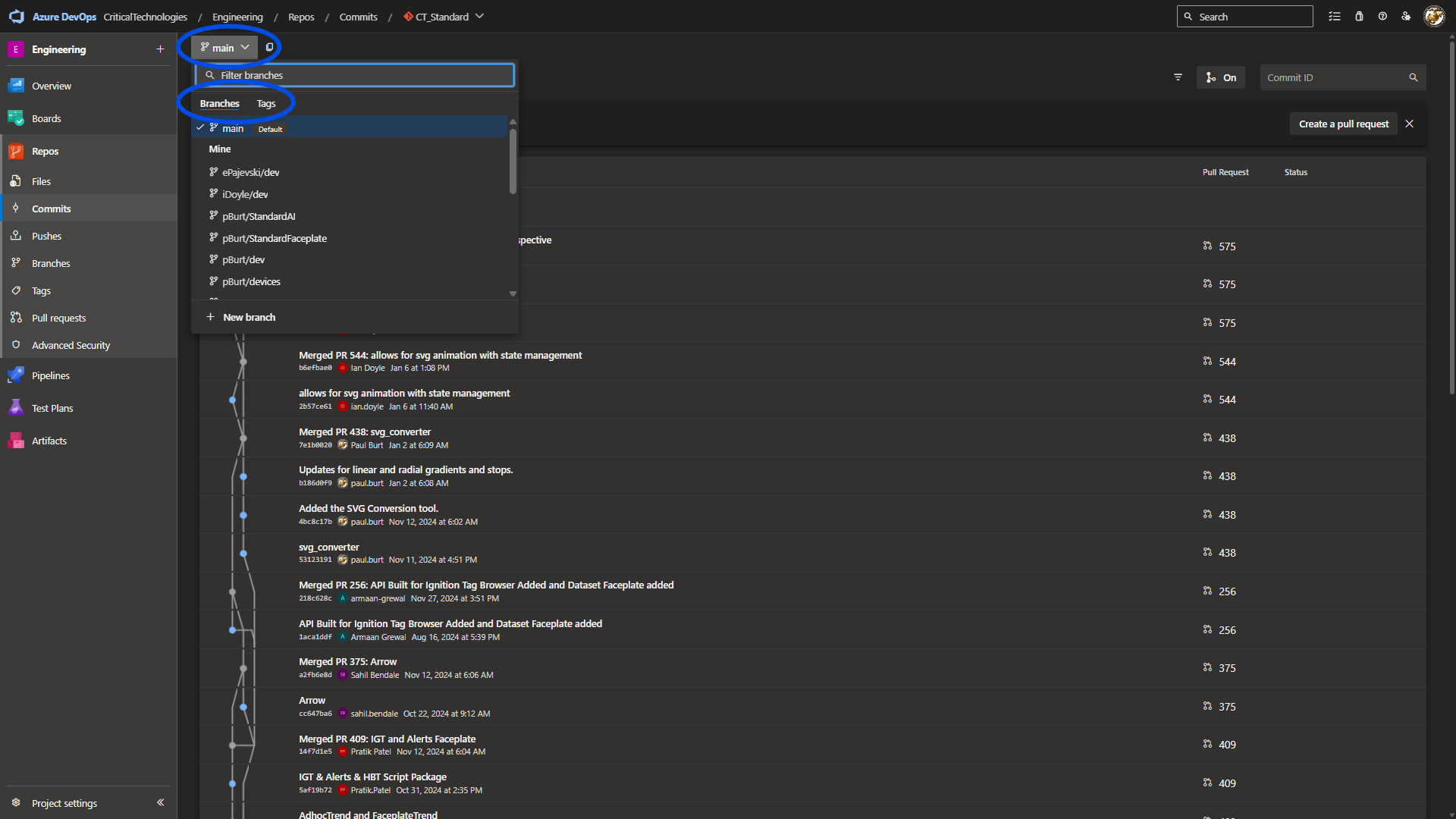
To change the selected branch or version, select the branches drop down. A list of all active branches on the project can be found under the Branches tab. A list of all project versions can be found under the Tags tab.
Pushes
The Pushes page shows an interactive history of all changes made to the active branch via Pull Request.
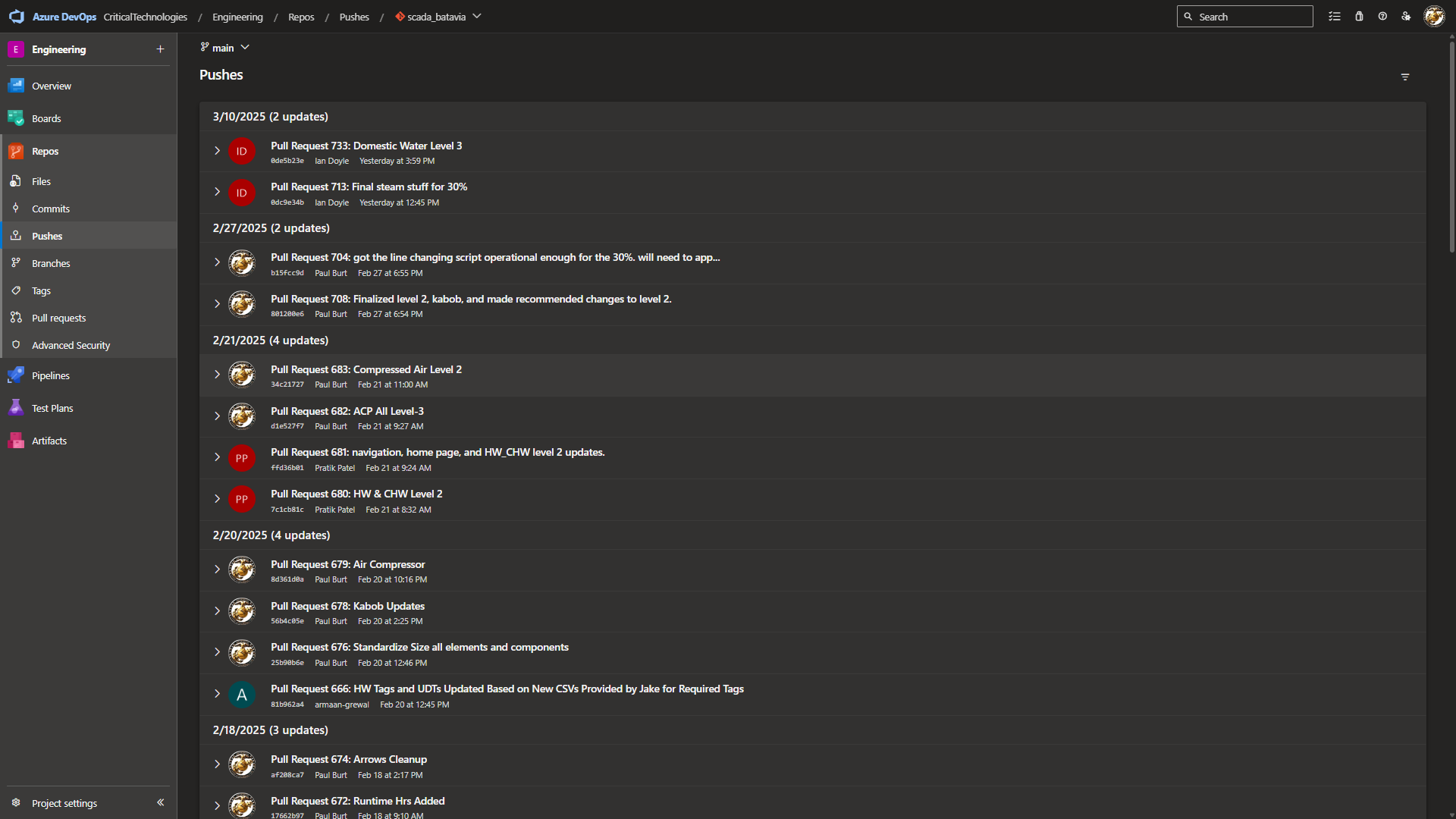
By expanding any of the pull requests, a list of the associated commits is display. By selecting the pull request, you will be taken to the pull request where more more detail is provided.
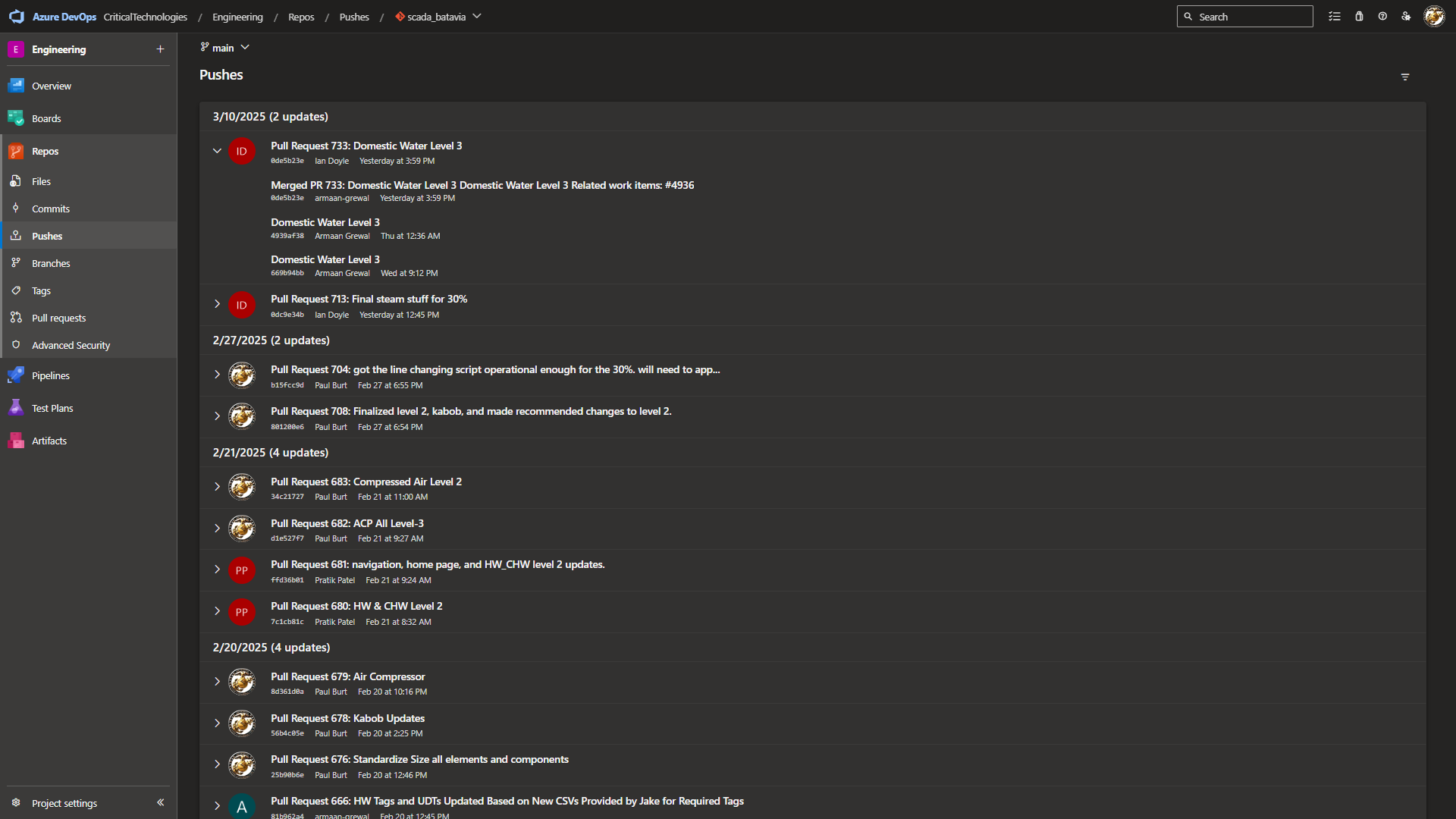
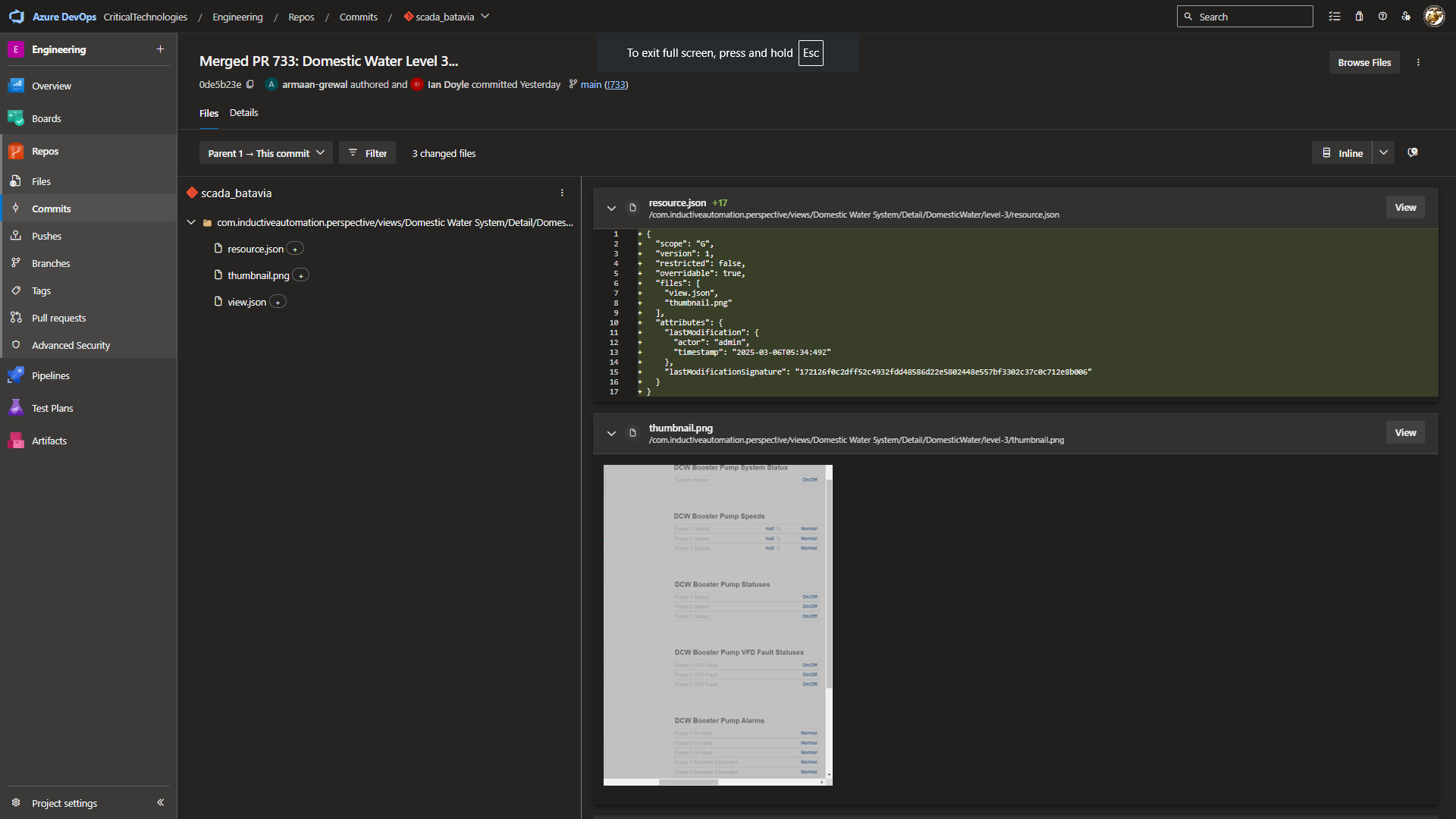
By selecting the commit, you will be taken to the commit page where the associated files and a code view are displayed.
Branches
Tags
Pull Requests
Revision History
| Revision | Date | Name | Description |
|---|---|---|---|